
Hide Folders On Android For Enhanced Privacy
TLDR: To quickly hide folders on Android, rename the folder with a dot prefix (e.g., “.secret”) using any file manager to make it invisible in galleries and apps. For stronger privacy, use built-in tools like Samsung Secure Folder or Google Files Safe Folder, which lock your files with a PIN or biometrics. Third-party apps like GalleryVault offer encrypted vaults for extra security. Remember, simple renaming hides folders from casual viewing but does not secure them from determined access.
Are you worried others might see your private files on your Android device?
The Android operating system offers smart ways to hide folders android, right in the settings or with a file manager.
This post shows easy steps using built-in features and third-party apps to keep your pictures, documents, and more safe from prying eyes.
Methods to Hide Folders on Android
Every Android device gives you simple ways to hide folders, using tools like a file manager or file explorer.
You can use smart tricks—like changing folder names or adding certain files—to keep your pictures, downloads, and other private stuff out of sight on your smartphone.
Renaming Folders with a Dot (.) Prefix
Concealing folders on your Android device can be surprisingly straightforward. You have the ability to make your private files less noticeable using a simple tactic. Here is the method:
- Launch any file manager application on your device. This could be the pre-installed one that arrives with your phone or one you installed from the Google Play Store.
- Identify the folder you aim to conceal.
- Modify the folder’s name by prefixing a dot (.) at the start of its name, like “.secret_files”.
- The folder then becomes invisible to most applications, including gallery and email apps.
- Your files remain hidden until you choose to reveal them again.
- To render the folder visible in the future, simply delete the dot from its name using the file manager.
- If you’re unable to find the concealed folder, seek a setting in your file manager titled “Show hidden files”. Activate this.
- Occasionally, you might need to reboot your phone for all modifications to be completely effective.
This strategy is efficient and proves beneficial for concealing folders from basic view. It’s vital to keep in mind that it provides minimal security and is ideal for casually concealing items, not securing sensitive data.
Using a .nomedia File to Hide Media
Maintaining privacy for your Android device’s media can be achieved quite effortlessly with the help of a .nomedia file. Here’s how to go about it:
- Comprehend the function of a .nomedia file. It instructs your phone to refrain from showcasing media files in designated folders.
- Procure a file manager app from the Google Play Store, which will enable you to create or eliminate these files.
- Locate the folder that contains the photos and videos you would prefer to conceal.
- In this specific folder, construct a new file and name it “.nomedia”. Assure that there’s nothing preceding the dot or trailing “nomedia”.
- The .nomedia file occupies negligible space, hence it won’t consume much of your storage.
- Post creating the file, restart your device. This ensures your modifications are activated instantly.
- To reveal the hidden files again, you can easily erase the .nomedia file or simply rename it.
- Utilize any gallery app or file browser that can unveil hidden files, if you wish to access them.
- Keep in mind, the addition of a .nomedia file merely conceals the folder’s content from view; it doesn’t secure it with a password or PIN.
This technique is ideal if you aim to maintain the confidentiality of certain photos and videos without completely restricting access to them.
Creating a Hidden Folder with a File Manager
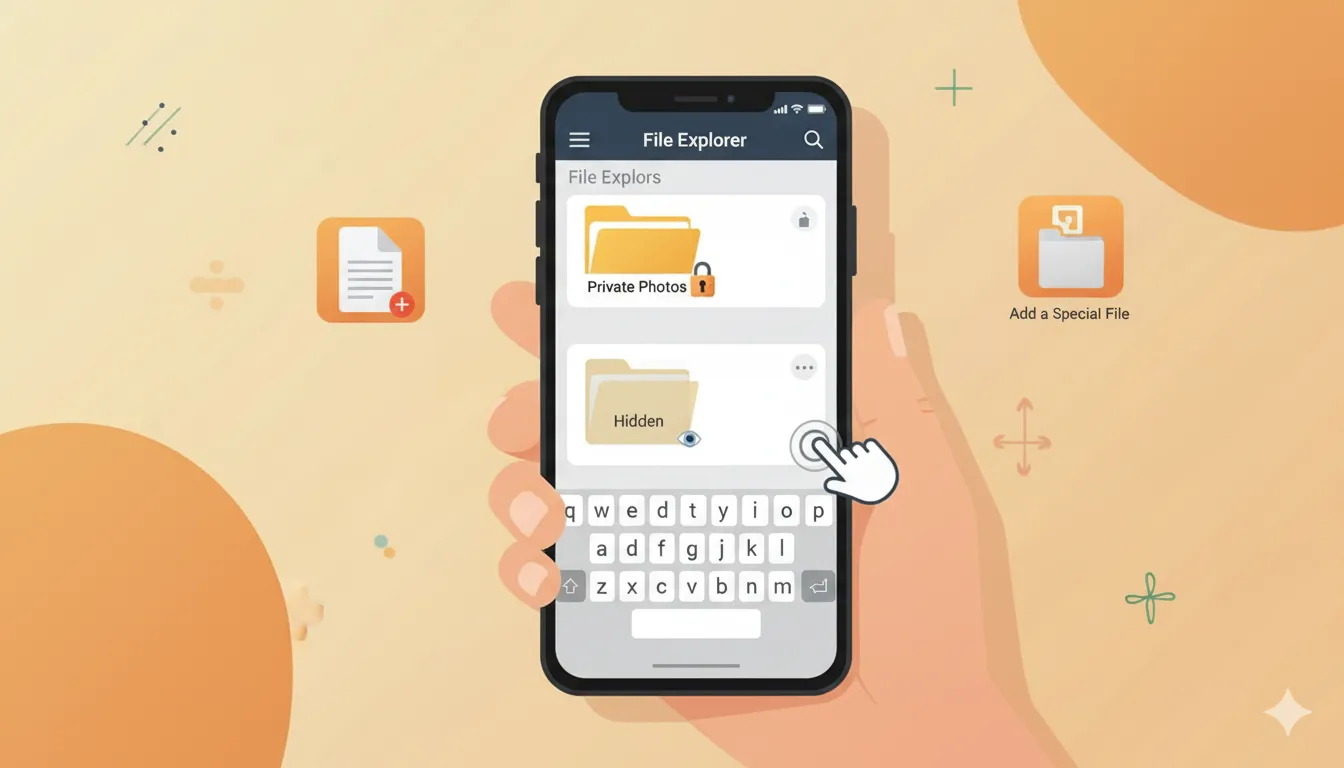
Creating a hidden folder on your Android device is an easy way to keep your files private.
You can do this without needing any extra apps, just by using the file manager that came with your phone.
Here are the steps:
- Open the File Manager app on your Android device.
- Tap on “Internal storage” to see where you can store your files.
- Choose a spot or create a new place for your hidden folder.
- Tap “Create new” or the plus icon, usually found at the bottom or top of the screen.
- Name your new folder and start it with a dot (.) like “.MySecrets.” This dot makes the folder hidden.
- Move any files you want to hide into this new folder. You can select photos, videos, or WhatsApp files.
- To see hidden folders later, go back to File Manager settings.
- Find and turn on “Show hidden files.” Now, you can view everything, even secret folders.
Using these steps helps you hide personal stuff right away without extra tools or programs.
Using Built-In Privacy Features
You have some great privacy tools built right into Android devices—no need to install anything extra for simple folder hiding.
Features like Samsung Secure Folder and Google Files Safe Folder keep your private stuff locked away, using your device screen lock or even your Google Account for an easy but safe experience.
Samsung Secure Folder
Set up Samsung Secure Folder through your SETTINGS menu, under SECURITY AND PRIVACY. Tap MORE SECURITY SETTINGS, then choose SECURE FOLDER to begin. This feature protects your private information with a PIN or password.
Only you—and anyone who knows the code—can access these files on your Android device.
Secure Folder uses encryption to keep apps and files safe from prying eyes. If an app runs inside Secure Folder and you later decrypt it, the app stops running until you unlock it again.
You can even hide the Secure Folder icon from your Apps screen using Quick Settings or inside settings. Move files here only if they are in your internal storage or on an SD card; cloud data will not transfer directly.
“With Secure Folder, privacy gets serious—one PIN at a time.”
If you forget how to get in, use the “Reset with Samsung account” option for easy recovery. Change security options too: set fingerprint unlock, adjust notification previews, and more for added peace of mind while managing hidden folders on Galaxy devices—including those pesky Instagram downloads or sensitive photos from Google Photos.
Google Files Safe Folder
Google added the Safe Folder feature to its Files by Google app in 2020. You can protect private files here using a simple 4-digit PIN. This folder locks itself right away if you leave the app or switch screens, so no one else on your Android device gets access without that PIN.
Safe Folder helps keep family photos, work documents, and other sensitive content away from prying eyes. Even if someone uses your phone, they cannot unlock or view these files unless they know your set code.
This option is perfect for shared devices at home or office and it works across many different Android phones. Right now, Safe Folder is still in beta form and might not show up yet for everyone but it will roll out to more users soon through regular updates of Files by Google via your Google Account.
Android Private Space (Pixel and Android 14+)
Android Private Space gives you a separate spot for your private files and apps on your Pixel or any device with Android 14 or higher. This space acts like a second user profile, so hidden folders and sensitive apps stay out of sight in your regular file explorer or gallery.
You can unlock Private Space using your device screen lock, password, PIN, or biometrics.
You will find the option to set up Private Space under Settings then Security & privacy. New file transfer features make moving important files from internal storage into this area quick and simple on Pixel devices.
With these tools built in, you do not always need third-party apps just to hide files securely from others who may use your phone.
Using Third-Party Apps to Hide Folders
Using apps like GalleryVault, FileSafe, or AppLock on your Android device can hide folders and files from your main file explorer—check out how these tools boost privacy with a touch of control.
GalleryVault
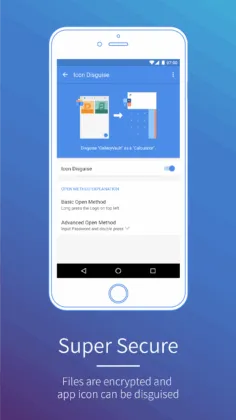
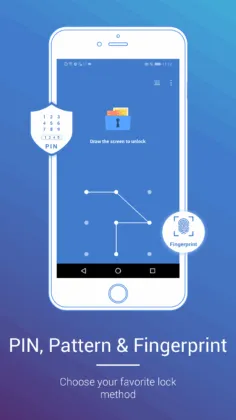
GalleryVault stands out as one of the most trusted third-party apps to hide folders and files on your Android device. Over 50 million users have downloaded it, earning a strong 4.7-star rating from more than 607,000 reviews.
You can use GalleryVault to hide and encrypt photos, videos, or even documents inside your internal storage. The app supports multiple languages for easy access.
You get break-in alerts if someone tries to peek at your hidden content. It also offers options like fake passcodes and fingerprint or pattern unlocks for extra safety. Hiding the app icon adds another level of privacy so others do not see you are hiding anything at all.
Your files stay local on your mobile phone; backing up those secret folders is always a good idea for peace of mind.
With GalleryVault you get both privacy and control over what stays private.
FileSafe
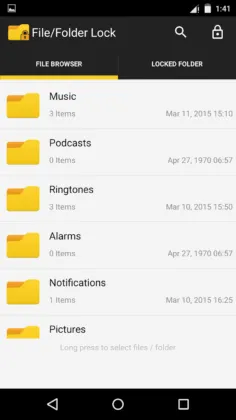
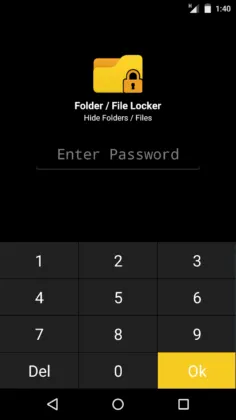
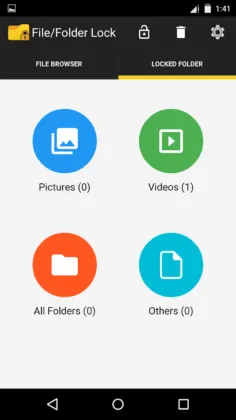
FileSafe helps you lock and hide folders or files on your Android device. The app comes from XCS Technologies, known for apps that boost privacy. Over 1 million people have downloaded it, showing strong trust among users.
You get a secret passcode to open hidden folders, so prying eyes stay out. Its built-in photo viewer lets you see pictures in private without moving them back. Video playback is instant too.
The app keeps things safe; FileSafe does not collect user data or share with third parties. You can delete or restore any file right away using the app’s simple tools. It has an average rating of 4.0 stars from about 9,520 reviews as of September 2025, which means many find it useful but some may want more features or better ads handling since the free version contains advertisements.
If you use a file manager or explore internal storage often, this app adds another layer of security beyond your device screen lock and Google account protection for hiding files in plain sight.
AppLock
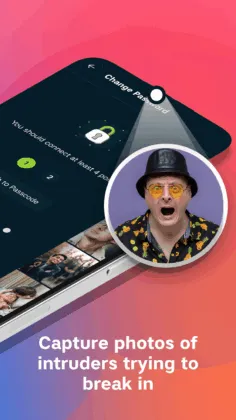
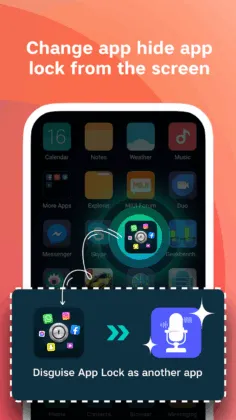
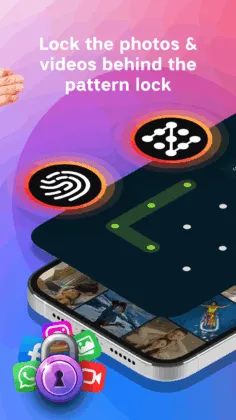
AppLock by NCAP Solutions LLP has over 100,000 downloads and earns a user rating of 3.8 stars from 470 reviews. You can lock apps like Facebook, your file manager, and even system tools using PINs, patterns, or fingerprint unlock.
The app goes further with an intruder selfie tool—it snaps a photo if someone tries to break in.
Use AppLock to hide files or folders inside its secure vault; add private photos or videos you do not want anyone else to find easily on your Android device. It uses encryption when sending data and does not share anything with third parties for safety.
Custom settings help you keep things hidden: turn off the visible pattern path or clean up junk files with one tap while keeping everything under stronger protection than just your device screen lock alone.
Tips for Managing Hidden Folders
Staying organized helps you keep hidden folders easy to find later—using a file explorer or built-in safe folder is smart. You might set up device screen lock protection or use your Google account for extra peace of mind… and there’s always more to explore about privacy tricks with your Android device!
How to Access Hidden Files Safely
To keep your personal content safe from unwanted attention on your Android device while ensuring it remains accessible, follow these steps:
- Launch your file manager. This could be any file handling app such as Google Files.
- Access the app’s settings. Find and select the “Show hidden files” option or a similar feature.
- Turn on “Show hidden files.” Consequently, your file explorer will display folders and files starting with a dot in their names.
- Media within folders associated with a .nomedia file will not appear in applications like Gallery or Music Players but are visible in the file manager.
- To access archived photos in Google Photos, open the app, navigate to ‘Library,’ then select ‘Archives.’
- Access content in a Safe folder by using the Files by Google app. Press on ‘Safe folder’ and enter your PIN or pattern.
- To view locked items in Google Photos, go to ‘Library,’ choose ‘Utilities,’ and select ‘Locked folder.’
- Keep track of the locations of hidden important files to simplify locating them later without requiring extensive searching.
- Always duplicate these hidden or locked files to a secure place like a cloud service connected to your Google Account or an external storage device.
Maintain and refer to these steps to always have your hidden files available when you need them, while keeping them safe from those who might use your device.
Using Guest Profiles for Additional Privacy
After learning how to access hidden files safely, you might want even more control while sharing your Android device. Guest profiles help keep your private folders and apps separate from others who use your phone.
Open Settings, tap System, then tap Multiple users or Users & accounts depending on your device model. Turn on guest mode before handing over your phone.
Guest profiles let friends or family use the device without seeing what you have in internal storage or using apps tied to your Google account. Files hidden with a file manager stay out of sight in the guest session.
Someone else using guest mode cannot see your photos, downloads, notes, RSS reader settings, app lockers like GalleryVault or FileSafe, or any custom folder names with a dot prefix.
Guest profiles act like a locked door between you and whoever borrows your phone.
Keeping Hidden Folders Secure with PINs, Passwords, or Biometrics
Guest profiles give you a layer of privacy, but real security comes from locking hidden folders. Use strong PINs, passcodes, or biometrics like fingerprints to keep files safe on your Android device.
Samsung Secure Folder lets you hide data with a special code or fingerprint scan. Set it up by going to SETTINGS, then tap SECURITY AND PRIVACY, pick MORE SECURITY SETTINGS, and select SECURE FOLDER.
Manage lock types and notifications in your Secure Folder settings for more control over who sees what. If you forget your code or password, you can reset it if “Reset with Samsung account” is enabled.
Built-in features like Google Files Safe Folder work in the same way; they need a PIN before showing any private files in internal storage. Choose easy-to-remember codes that are hard for others to guess—never share them.
These steps help block unwanted access and make sure only you get into those folders using fingerprints or face unlock when available.
Conclusion
Hiding folders on your Android device is easier than you might expect. Built-in tools and simple tricks, like the dot method or .nomedia files, keep your private stuff away from prying eyes.
Secure features in Samsung Secure Folder or Google Files help too. Use these methods with a strong device screen lock for better privacy. Your files stay protected and only you control who sees them—peace of mind made simple!
References
- https://www.timesnownews.com/technology-science/how-to/how-to-hide-files-and-folders-on-android-devices-article-106984135
- https://www.lifewire.com/nomedia-file-4172882
- https://smartphones.best/threads/how-to-hide-files-and-folders-on-android-without-installing-apps.201/
- https://www.samsung.com/us/support/answer/ANS10001401/
- https://www.samsungknox.com/en/solutions/personal-apps/secure-folder
- https://blog.google/around-the-globe/google-asia/making-privacy-personal-files-google/
- https://pixel.gadgethacks.com/news/why-googles-private-space-isnt-just-hiding-filesits-creating-a-second-phone-inside-yours/
- https://play.google.com/store/apps/details?id=com.thinkyeah.galleryvault&hl=en_US
- https://play.google.com/store/apps/details?id=com.galleryvault.VideoLocker&hl=en_US
- https://play.google.com/store/apps/details?id=com.xcs.folderlock&hl=en_US
- https://lifehacker.com/hide-files-on-your-android-with-a-pin-protected-safe-fo-1844652676
- https://play.google.com/store/apps/details?id=com.lockapps.applock.gallerylocker.hide.photo.video&hl=en_US
- https://play.google.com/store/apps/details?id=com.domobile.applock.ind&hl=en_US
- https://support.google.com/files/thread/219614188/how-do-i-access-my-hidden-files
- https://android.stackexchange.com/questions/61714/how-do-i-see-hidden-folders-on-android
- https://support.google.com/android/answer/15341885?hl=en
- https://www.honor.com/uk/blog/how-to-hide-apps-on-android/?srsltid=AfmBOornPX6jS1WHHxtCbxZb1gneZPbdYBuSJHOX2Zbcsf2UWgmVVgHY